
Jump to an example from the table of contents above or open the sidebar using the button on the left edge of the page. At the end of the post, open the BibTeX citation, follow a related demo or leave a comment. See the front matter on GitHub for the settings used here.
Tables of contents
Choose Carousel in the in-page or sidebar index, then scroll to Video to see the current section update. The expandable index below is generated by kramdown from the same article.
Open the kramdown table of contents
Guest author
Alex Rivera is a fictional guest author. Open the profile link in the author card to jump back here. The example citation credits Alex and a fictional research group. The journal, identifiers and links are sample data.
Series navigation
Open Series index to see the full list, or select Next to continue to the diagram demo. See Series navigation for setup.
Series index: Component demos
Series index: Site identity and content
Two series on one page
This post also closes the Site identity and content series. Compare the two indexes above. Component demos offers a next chapter, while Site identity and content offers a previous chapter.
Diagrams, equations and code
flowchart LR
    accTitle: Publishing workflow
    accDescr: Draft a post, preview it, then publish it.
    Draft --> Preview --> Publish
The sum of the first (n) positive integers is:
\[\sum_{k=1}^{n} k = \frac{n(n+1)}{2}\]layout: default
show_toc: true
mermaid: true
Callouts
Use callouts to give publishing advice a clear purpose. Each type supplies its own heading and icon.
The page preview uses your current draft.
Open the preview on a narrow screen before publishing.
Update internal links before you change a published URL.
Remove private tokens from the files you publish.
Save a copy of your working configuration before switching skins.
Tabs
Switch between three stages of publishing an article. Use the arrow keys to move between tabs.
Write your title and section headings before adding screenshots or code.
Read the generated page and try its links and controls with the keyboard.
Open the public URL after deployment and verify that it serves the latest article.
Tables
A short table pairs each file with its purpose.
| File | Purpose |
|---|---|
_config.yml |
Site settings |
index.md |
Home page |
Align text to the left, status labels to the center and durations to the right so readers can scan each column.
| Check | Status | Time |
|---|---|---|
| Links | Done | 2 min |
| Mobile view | Done | 5 min |
| Keyboard | Pending | 4 min |
Blockquotes
A blockquote sets a passage apart from the surrounding prose. Add a footer when the reader needs to know where the quotation came from.
Preview the article at the width your readers are likely to use.
Check the preview with a keyboard before signing off.
Footnotes
Keep short explanations in footnotes when they would interrupt the article. Follow a note number to read it, then use its backlink to return.
Preview the draft locally,1 check its public URL after deployment,2 and sign off after a keyboard pass.3
Lists
Use an ordered list when the sequence matters, and bullets when readers can work through the items independently. A definition list pairs terms with explanations.
- Write the draft.
- Preview the generated page.
- Publish after review.
- Check the article metadata.
- Review the media:
- Check image descriptions.
- Try the video controls.
- Draft
- An article still being edited.
- Preview
- A build you can inspect before publication.
Action links
Use button styles for links that lead to a clear action. Here the main action opens the starter guide, and the secondary links lead to supporting material.
Image galleries
Masonry gallery
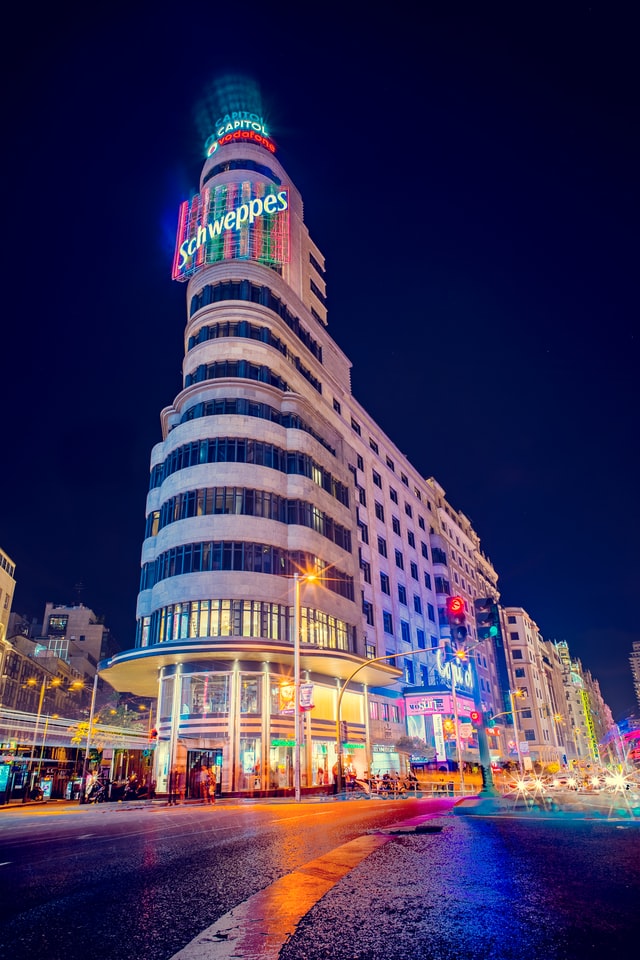
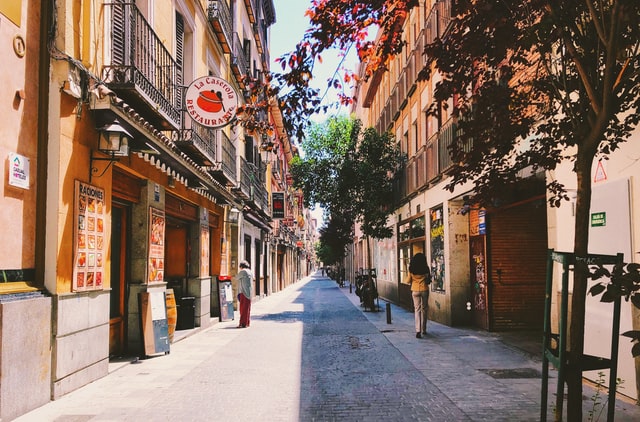
Select an image to open PhotoSwipe. Use the arrow keys to browse and press Escape to return to the gallery.

Carousel
Use the previous and next controls to change slides, or open a slide to zoom in with PhotoSwipe.
Video
This aerial clip shows a lagoon from above.
How to cite this post
For attribution, please cite this work as:
Rivera, A. & Kitchen Sink Research Group. (2026). The Kitchen Sink experiment (fictional example). Journal of Imaginary Web Studies, 4(2), 15–21. https://doi.org/10.0000/chulapa.kitchen-sink-demo
BibTeX
@article{rivera-2026-kitchen-sink-demo,
  author = {Rivera, Alex and {Kitchen Sink Research Group}},
  title = {The Kitchen Sink experiment (fictional example)},
  year = {2026},
  month = nov,
  journal = {Journal of Imaginary Web Studies},
  volume = {4},
  number = {2},
  pages = {15--21},
  doi = {10.0000/chulapa.kitchen-sink-demo},
  url = {https://example.invalid/kitchen-sink-demo},
}